Playing a video in a language you do not understand? WireLang™ Live can translate the sound as you listen. Install the desktop app, sign in, choose the language you want to hear, and press Start Translating. The translated voice plays over the original sound. You can turn on subtitles too.
This guide covers listening to translated audio on your own computer. Translating your microphone back to other people is a separate, upcoming Headset mode.
What you need
- Windows 10 or 11, 64-bit; or macOS 13 or later on Apple Silicon.
- A steady internet connection. Translation uses Google's Gemini API and is subject to regional availability.
- A WireLang account and either credit balance, an eligible trial, or access to BYO mode with your own Gemini API key.
- Headphones, especially for calls. They keep the translated voice from leaking into your microphone.
Check the app for available trial minutes and demo credit offers. Some offers need approval. A BYO trial uses your own Gemini key, so Google usage charges may still apply. See current pricing and the BYO setup guide.
Set up live audio translation
- Install and sign in. Download WireLang™ Live for your computer. Open it and sign in with Google, or Apple on macOS.
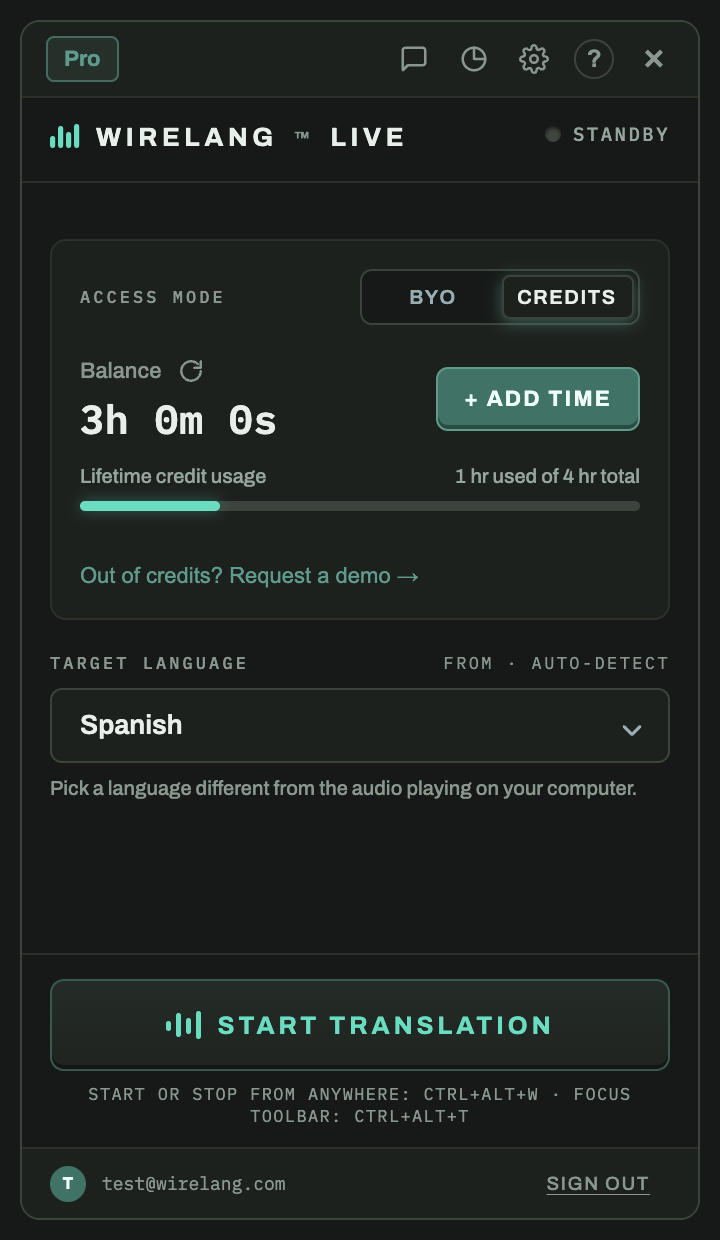
- Choose your access mode. Use Credits for the built-in service, or connect your own Gemini API key for BYO mode. Check your balance or trial availability before starting.
- Play the source audio. Start a YouTube video, a course, a media player, or a meeting you are attending. System audio is the sound playing on your computer, rather than the sound entering your microphone.
- Choose the language you want to hear. For example, to follow a Spanish lecture in English, select English. The source language is detected from the speech.
- Press Start Translating. Listen to the translated voice over the softened original audio. Use the floating toolbar to pause, stop, or change language.
Adjust the sound and subtitles
Open the speaker menu to balance the translated voice and original audio. On Windows, you can select a single app as the source instead of capturing the whole PC. Close or mute unrelated audio sources if several apps are speaking at once.

Choose CC for live subtitles. Expect some delay between the original speech and the translation. The delay depends on the speech, your connection, and the translation service. If several people talk at once, or music covers the speaker, the translation may miss words.
Watch the full tutorial with a video demonstration, or follow the guides for Zoom calls, Teams meetings, and YouTube videos and livestreams.
If translation is silent or will not start
- Check the source. Make sure the video or meeting is playing and audible, and that the selected source app has not been muted.
- Check capture permission. On Windows, review Microphone privacy access for desktop apps. On macOS, allow WireLang under Screen & System Audio Recording, then relaunch it.
- Check output volume. Raise the translated voice volume and confirm your headphones or speakers are selected.
- Check access and connectivity. Confirm your balance or BYO access, internet connection, and regional availability. Restart the session after resolving the issue.
For persistent problems, use the help center or contact support.
Common questions
Can it translate audio from any website?
WireLang captures computer playback, so the website does not need a WireLang integration. The audio must be available to system capture. It does not translate text or images on a page.
Will other people in a meeting hear my translation?
The translated voice plays locally. WireLang's listening mode does not replace your outgoing microphone audio. Use headphones to keep speaker playback from reaching your microphone.
Does it work offline?
No. Live translation sends audio to Google's Gemini API. WireLang servers do not store that audio. Optional session transcripts and recordings stay on your device; see the privacy policy for processing details and BYO data terms.
Can I use the translation as an exact record?
Check names, numbers, and technical terms against the original. A translation can sound fluent and still get a detail wrong.